
WooCommerce Pincode/ Zipcode Checker
Introduction
The WooCommerce Pincode/ Zipcode Checker module is a much-needed feature to check the availability of a product by the Zip Code/ Pin Code/ Postal code.
Features:
- Check Pincode/ Postal/ Zipcode availability on product page.
- Pincode/ Zipcode checker works on store and product level.
- Support all types of Postcodes/ Zipcodes/ Pincodes
- Bulk CSV import and export.
- Bulk Editor for Product Level.
- Single Pincode add, edit, and delete.
- Disable all payment gateways.
- Compatible with Dokan Multivendor Lite and Pro versions.
- Fully responsive.
- Fully customizable.
- Supported to all themes with WooCommerce.
- WPML supported.
- Shortcode to display Pincode/ Zipcode checker form.
- 24/7 premium support.
- Automated updates.
How to install plugin
- Download the zip file from the codecanyon.net
- Extract the downloaded zip file on your desktop or in any folder.
- Open the extracted folder “woocommerce-pincode-zipcode-checker“.
- Here you find three folders 1) Documentation 2) License 3) Plugin.
- Open the “Plugin” folder. Now you found the main plugin file “plugin.zip“.
- Log in to your WordPress admin panel.
- Mouse over the “Plugins” menu and click on “Add new“.
- Click on the “Upload Plugin” button and then click on the “Browse” button.
- Select the “plugin.zip” file and click on the “Upload” button.
- Now the final step, after uploading complete click on the “Activate Plugin” button.
Store vs Product Level
Store Level:
The store level option allows the admin to set Pincode/Zipcode/Postcode at the store level i.e. if the products to be delivered from a store are all ready to be dispatched at the same time to the particular Pincode/Zipcode/Postcode, the store level setting goes quite well in this case.
Example: Let’s suppose you have 3 products in your store, Plant, Sunglass and Toy car, all 3 of which are ready to be dispatched at the same time from your store to a particular Pincode/Zipcode/Postcode,
- The plant will be delivered to the Pincode/Zipcode/Postcode 12345678 in 5 days.
- The sunglass will be delivered to the Pincode/Zipcode/Postcode 12345678 in 5 days.
- The toy car will be delivered to the Pincode/Zipcode/Postcode 12345678 in 5 days.
In the above example, you can see all the above three products are delivered to the Pincode/Zipcode/Postcode 12345678 in 5 days because of the same time of dispatch.
Product Level:
The product level option allows the admin to set Pincode/Zipcode/Postcode at the product level i.e. if the products to be delivered from a store to a particular Pincode/Zipcode/Postcode have different dispatch timing, the product level setting is suitable for you.
Example: Let’s suppose you have 3 products in your store, Plant, Sunglass and Toy car. But all these products have different dispatch durations. These products then definitely would take different times to get delivered to a particular Pincode/Zipcode/Postcode. Suppose,
- The plant takes 3 days dispatch time and is delivered to the Pincode/Zipcode/Postcode 12345678 in 5 days.
- The sunglass takes 1 day dispatch time and is delivered to the Pincode/Zipcode/Postcode 12345678 in 3 days.
- The toy car takes 8 days dispatch time and is delivered to the Pincode/Zipcode/Postcode 12345678 in 10 days.
In the above example, you can see all three products are delivered to the Pincode/Zipcode/Postcode 12345678 in different periods of time because of different dispatch timings.
Read more about Product Level.
Have any questions? Please feel free to contact us for Pre-sale or Support
Plugin settings
Appearance settings
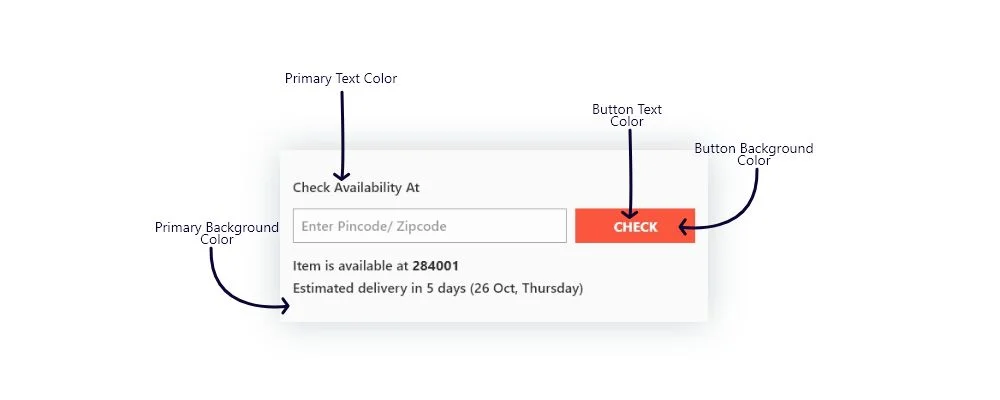
Primary Background Color: Select the primary background color. Default #fafafa
Primary Text Color: Select the primary text colour. Default #333333
Button Background Color: Select the counter background colour. Default #fc563f
Button Text Color: Select the counter text colour. Default #fffff
Basic settings
Pincode Checker level: Select the pincode checker level.
- Store Level – common for all products.
- Product Level – you can set the pincode/ zipcode individually for products.
Pincode Checker Location: Select the location of pincode/ zipcode checker form.
Pincode Checker On Cart Page: You can enable/ disable pincode checker on cart page.
Pincode Checker On Checkout Page: You can enable/ disable pincode checker on checkoue page.
Disable Payment Gateways?: You can disable all or specific payment gateways if pincode/ zipcode not serviceable.
Shortcode: You can disable all payment gateways if pincode/ zipcode not serviceable.
Custom CSS: You can enter the plugin related custom CSS here.
Advanced settings
Comma separated match
Comma-separated matching enables the use of , (comma) as a separator for pincodes/zipcodes.
- Example: The pattern
100001,100002,100003includes all pincodes/zipcodes100001,100002,100003. - Example: The pattern
200001,200002,200003,200004includes all pincodes/zipcodes200001,200002,200003,200004.
Range match
Range matching enables the use of ... as a separator for pincodes/zipcodes.
- Example: The range
100000...100999includes all pincodes/zipcodes ranging from100000to100999. - Example: The range
90210...99000includes all pincodes/zipcodes ranging from90210to99000.
Wildcard match
Wildcard matching enables the use of ? as a placeholder for numbers (0-9).
- Example: The pattern
1?????includes all pincodes/zipcodes ranging from100000to199999. - Example: The pattern
210??includes all pincodes/zipcodes ranging from21000to21099. - Example: The pattern
?10??3covers all pincodes/zipcodes codes starting with any digit(0-9), followed by10, then any two digits(00-99), and ending with3.
Regex match
Regex matching enables the use of Regular Expressions for pincode/zipcode matching.
- Example: The pattern
/^1[0-9]{5}$/includes all pincodes/zipcodes starting with1and followed by any 5 digits(0-9). - Example: The pattern
/^AB[0-9]{4}$/includes all pincodes/zipcodes starting withABand followed by any 4 digits(0-9).
Note: The pincode/zipcode regex should begin and end with /. For example: /^1[0-9]{5}$/ or /^AB[0-9]{4}$/.
More Details:
Regex Match is a powerful feature in our plugin. Regex match allows you to match the Pincode/Zipcode/Postcode using the regex pattern. It allows you to minimize Pincode/Zipcode/Postcode entries.
Let’s suppose, you want to cover Pincode/Zipcode/Postcode range from 111111 to 666666, normally it requires 555555 entries to make it possible but using the Regex match you can do it with just one enter [1-6]{6}. Here [1-6] allows only numbers from 1 to 6 and {6} allows 6 digits combination of 1 to 6. Any 6 digits Pincode/Zipcode/Postcode from 1-6 falls into this condition.
Example 1: Pincode/Zipcode/Postcode range between 100000 to 999999. Like, 110001, 146001, 660123, 889933, etc.
Regex: [1-9]{6}
Regex Detail: [1-9] allows numbers between 1 to 9 only and {6} allows a combination of 6 digits from 1-9.
Example 2: Pincode/Zipcode/Postcode starts with AB and then any 4 digits. Like, AB1234, AB3109, AB1101, etc.
Regex: AB[0-9]{4}
Regex Detail: AB are the fixed characters, [0-9] allows numbers between 0 to 9 only and {4} allows a combination of 4 digits from 0-9.
Example 3: Pincode/Zipcode/Postcode starts with 2 or 6 followed by 4 digits only. Like, 2342, 6001, 2301, 6124, etc.
Regex:[2|6][0-9]{3}
Regex Detail: [2|6] allows only 2 and 6 digits, [0-9] allows numbers between 0 to 9 only and {3} allows a combination of 3 digits from 0-9.
More information about Regex:
Shop page checker settings
Pincodes
The pincodes section allows you to manage ( Add, edit, and delete ) pincodes/zipcodes/postcodes directly for WordPress admin.
Add Pincode/zipcode/postcode manually:
- Login to the WordPress admin dashboard.
- Mouse over the Pincode Checker menu and click on the Pincodes link.
- Click on the Add Pincode button.
- Enter the Pincode/zipcode, Day(s), and Note.
- Click on the Save Changes button.
Edit existing Pincode/zipcode/postcode manually:
- Login to the WordPress admin dashboard.
- Mouse over the Pincode Checker menu and click on the Pincodes link.
- Select or search the pincode/zipcode/postcode that you want to edit and then click on edit.
- Change the details you want to.
- Click on the Save Changes button.
Delete existing Pincode/zipcode/postcode manually:
- Login to the WordPress admin dashboard.
- Mouse over the Pincode Checker menu and click on the Pincodes link.
- Select or search the pincode/zipcode/postcode that you want to edit and then click on delete.
Pincode checker settings
Enter Title: Enter the title of pincode/zipcode checker.
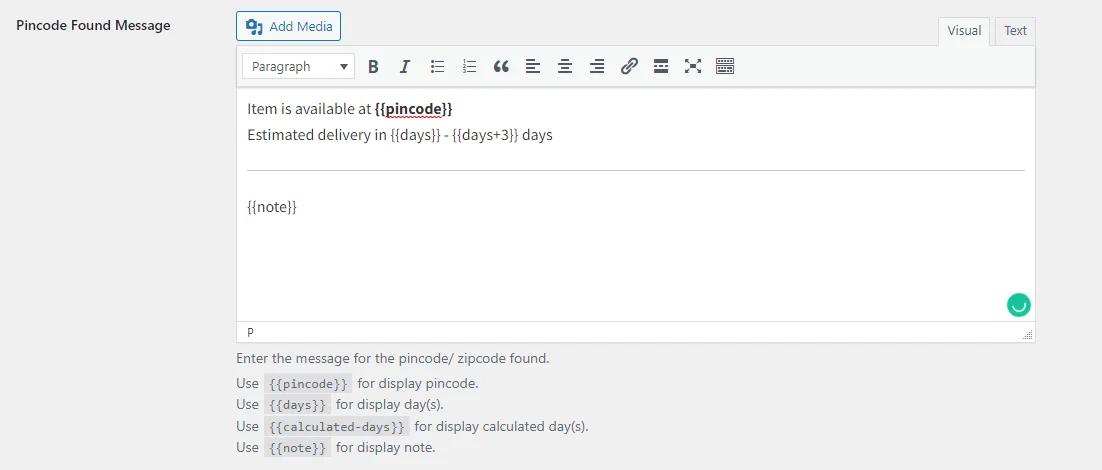
Pincode Found Message: Enter the message for the pincode/ zipcode found.
- Use
{{pincode}}placeholder for display pincode. - Use
{{days}}placeholder for display day(s). - Use
{{calculated-days}}placeholder for display calculated day(s). - Use
{{note}}placeholder for display note.
Pincode Not Found Message: Enter the message for the pincode/ zipcode not found.
- Use
{{pincode}}placeholder for display pincode. - Use
{{days}}placeholder for display day(s). - Use
{{calculated-days}}placeholder for display calculated day(s). - Use
{{note}}placeholder for display note.
Button Text: Enter the button text.
Input Placeholder Text: Enter the input placeholder text.
Import/ Export
Import/ Export global CSV steps
Import and export CSV makes life easy.
Download Sample CSV: Click on the Download button to download the sample CSV file.
Export Pincode/ Zipcode CSV: If you want to export the existing uploaded Pincode/zipcode/postcode then click on the Download button.
Import Pincode/ Zipcode CSV: You can upload the created CSV file here.

- Go to the plugin settings and click on Import/ Export.
- Click on the “Download Sample CSV” – Download Button.
- Open the downloaded sample.csv file
- Enter your Pincode under the pincode column, Delivery days under the days column, and Message ( You can leave it blank ) under the note column.
sample.csvfile
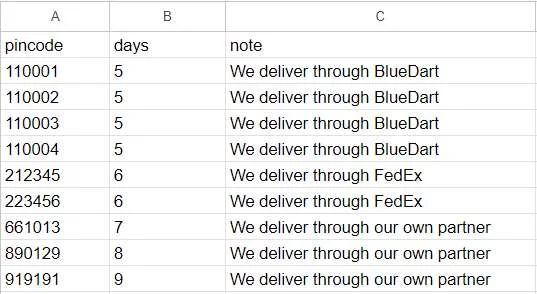
- Save the CSV file.
- Upload the CSV file and click on the Start Import button.
Note: Don’t change or delete the sample CSV header row while you add the pincodes/zipcodes/postcodes.
Product level
The product level option allows the admin to set Pincode/Zipcode/Postcode at the product level i.e. if the products to be delivered from a store to a particular Pincode/Zipcode/Postcode have different dispatch timing, the product level setting is suitable for you.
Pincode/ Zipcode Product Level Settings:
You can find the option to set the product deliverability on each product page. Make sure, you selected Product Level from Pincode Checker > Basic Settings > Pincode Checker level dropdown.
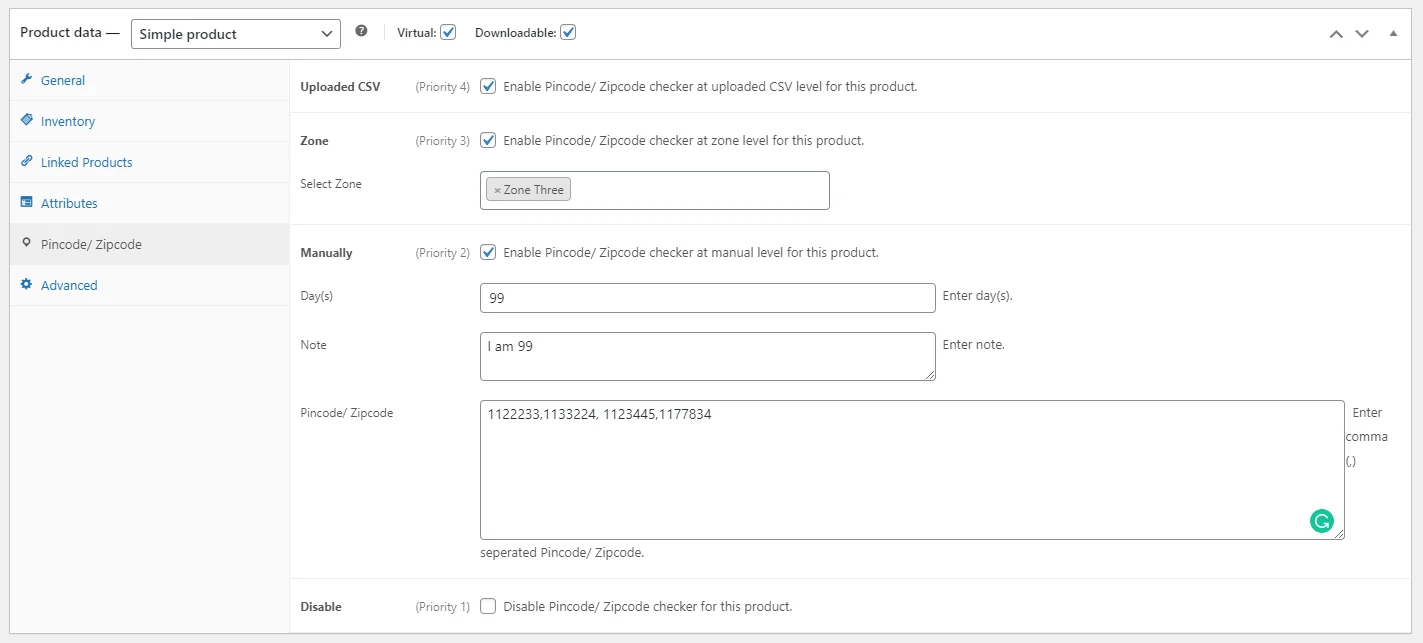
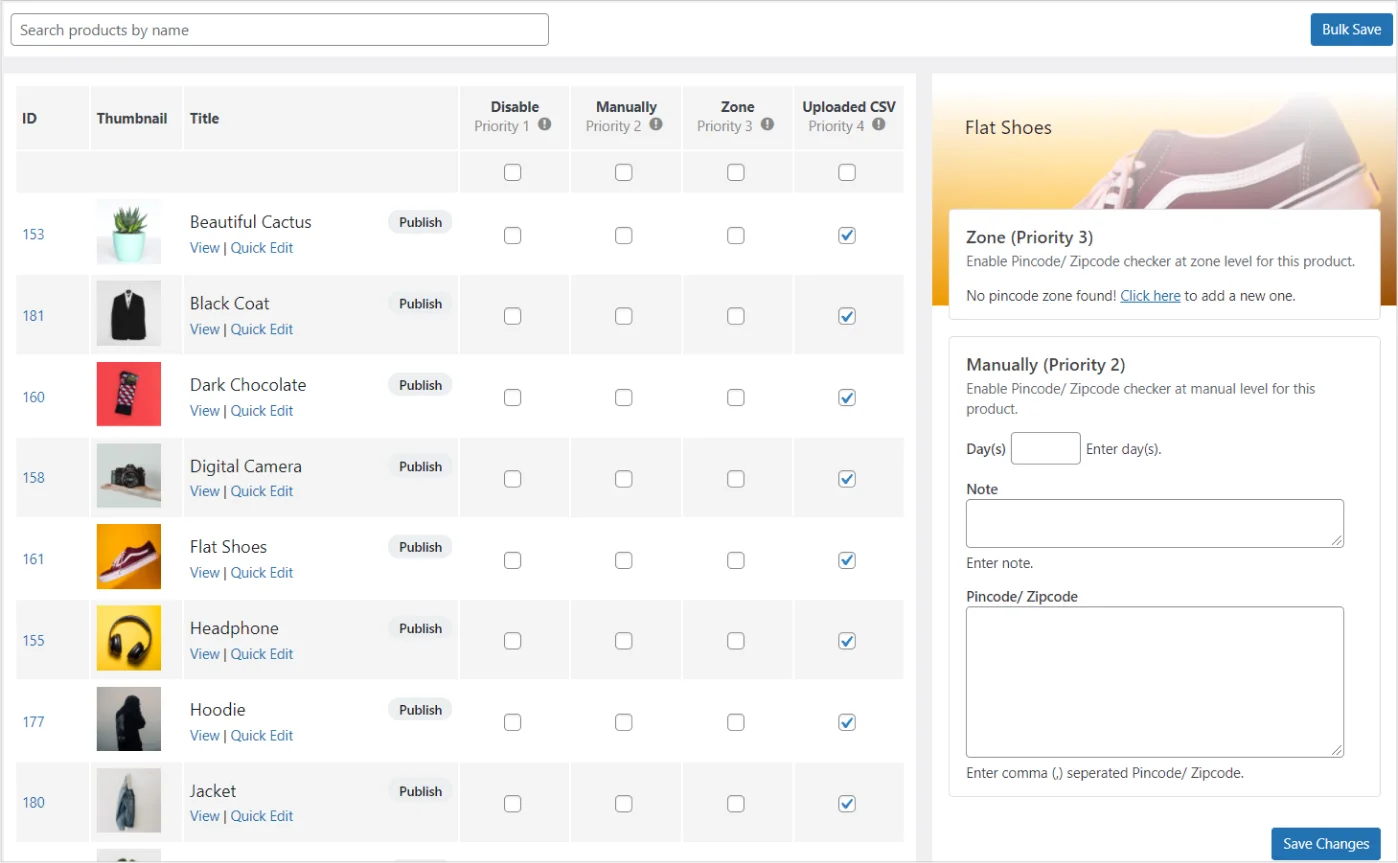
Uploaded CSV (Priority 4): Uploaded CSV or Global CSV is the simplest way to add Pincodes/Zipcodes/ Postcodes for all existing products. By default, this option is enabled for all products. Let’s suppose, you have 10 products in-store and all products’ delivery time is the same for the particular Pincode/Zipcode/Postcode then the Uploaded CSV option is best for you.
Zone (Priority 3): Zones are the best way to show delivery time if the product has different delivery times for different Pincodes/Zipcodes/Postcodes. Let’s suppose, you have product A and Product A can deliver to the Pincode/Zipcode/Postcode 123456 in 10 days, and can deliver to the Pincode/Zipcode/Postcode 987654 in 5 days then you can create zones.
Manually (Priority 2): Manually option allows the addition of some Pincodes/Zipcodes/Postcodes (comma separated).
Disable (Priority 1): Disable option is to disable the Pincode/ Zipcode checker form from the product.
Pincode zones
Pincode Zone allows you to create zones for the pincode/zipcode/postcode and then you easily assign zones to the particular product.
Add a new Pincode Zone:
- Login into your WordPress admin dashboard.
- Mouse over the Pincode Checker menu and then click on Pincode Zone.
- Click on the Add New button.
- Now, add the zone name in the title input.
- Enter the Day(s), Note, and Pincodes ( comma separated ).
- Click on the Publish button
Assign Pincode Zone to a product:
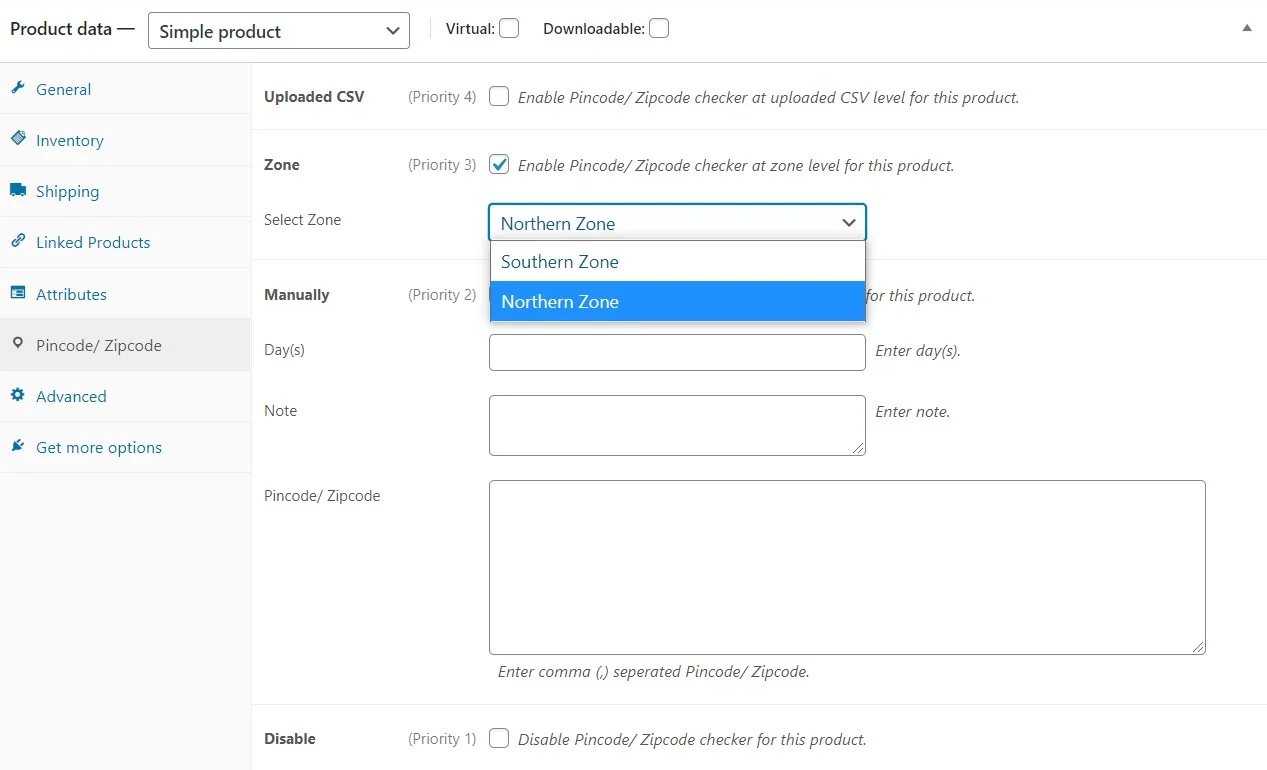
- Edit the WooCommerce product on which you want to assign the Pincode Zone.
- Scroll down to Product Data and click on the Pincode/Zipcode.
- Enable the Pincode/ Zipcode checker at the zone level for this product option.
- Select the zone that you want to assign.
- Click on the Update/Publish button.
Bulk editor
Wow, Bulk Editor made life so easy. Bulk Editor is the very powerful and fastest feature to add delivery time to the products. You don’t need to go individual product’s edit page to manage the delivery times, you can now do it directly from one page.
Import/ Export products wise CSV
Products wise CSV feature used to import and export CSV according to the products. Make sure, you selected Product Level from Pincode Checker > Basic Settings > Pincode Checker level dropdown to see this setting on the Import/ Export page.
How to
Here you can find some most asked technical questions and their solutions.
How use shortcode
You can display the pincode/zipcode/postcode checker form on any page or location on your website by using the following shortcode.
Shortcode: [wpzc-pincode-checker]
Display the pincode/zipcode/postcode checker form on the page, and post through WordPress Admin.
- Edit the page or post on which you want to show the pincode checker form.
- Copy and paste the shortcode
[wpzc-pincode-checker]inside the WordPress text editor.
Note: Shortcode to display the pincode/zipcode/postcode checker only works when you select Store Level from the Basic Settings.
How disable payment gateway(s)
Disable payment gateway(s) allow to disable the one, some, or all payment gateways if the product(s) not deliverable.
- Step 1: Log in to your WordPress admin panel.
- Step 2: Click on the Pincode Checker from the admin navigation panel.
- Step 3: Now, click on the Basic Settings tab.
- Step 4: Now, you can disable by checking one, some, or all payment gateways from the Disable Payment Gateways. option.
- Step 5: Hit the Save Changes button.
Note: Product Level – If there are 5 products in the cart and 2 of them are not deliverable to the entered Pincode/Postcode/ZipCode, the payment method will be disabled until the customer removes the non-deliverable products from the cart.
How to not save Pincode/ Zipcode
By default, the WooCommerce Pincode/ Zipcode checker saves the pincode/zipcode/postcode entered by the user. If you don’t want to save the pincode/zipcode/postcode then copy the following code and paste it into the child theme’s functions.php file.
add_filter( 'wpzc_get_customer_pincode', '__return_false' );How to show date in range
You can show a range of the dates when the product is deliverable using the {{days+}} and {{days-}} placeholders. Where will be replaced by the number you want to add or subtract from actual days.
For example:
If you want to show like, the Estimated delivery in 3-6 days then you have to use {{days}} placeholder to display the days you added in Global CSV or any Product Level methods and use {{days+3}} to add 3 more days in actual days.
Some cases:
- Estimated delivery in 3-6 days = Estimated delivery in {{days}}-{{days+3}} days
- We will deliver in 5-6 days = We will deliver in {{days}}-{{days+1}} days
- Estimated delivery in between 10 to 14 days = Estimated delivery in between {{days}} to {{days+4}} days
How to replace pencil icon with button
By default, WooCommerce Pincode/ Zipcode Checker has a pencil icon to change the entered Pincode. You can easily replace the pencil icon with a button with text or with simple text by adding CSS to the plugin’s Custom CSS option.
Replace the pencil icon with a button with text:
Example:
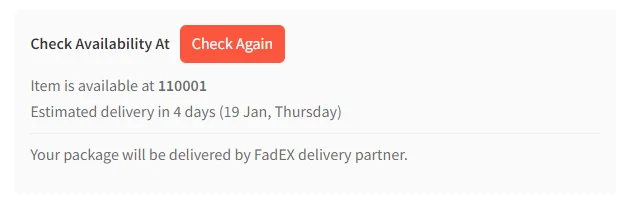
.wpzc-pincode-checker__change {
    width: auto;
    padding: 6px 12px;
    background: #fc563f; /* Button background color hex code. */
    color: #ffffff; /* Button text color hex code. */
    font-weight: 400;
    border-radius: 6px;
}

.wpzc-pincode-checker__change:hover {
    background: #fc563f; /* Button background color hex code. */
    color: #ffffff; /* Button text color hex code. */
}

.wpzc-pincode-checker__change::after {
    content: "Check Again"; /* Button text. */
}

.wpzc-pincode-checker__change img {
    display: none;
}
Replace pencil icon with text only:
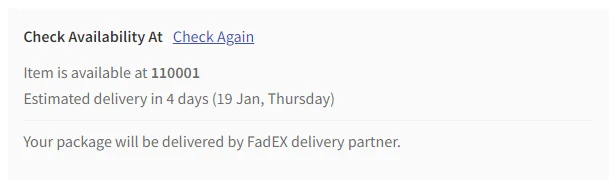
.wpzc-pincode-checker__change {
    width: auto;
    padding: 0;
    color: #3f51b5; /* Button text color hex code. */
    font-weight: 400;
    border-radius: 0;
    text-decoration: underline !important;
}

.wpzc-pincode-checker__change:hover {
    color: #3f51b5; /* Button text color hex code. */
}

.wpzc-pincode-checker__change::after {
    content: "Check Again"; /* Button text. */
}

.wpzc-pincode-checker__change img {
    display: none;
}
How to Log the Pincode/Zipcode
This snippet logs the pincode/zipcode/postcode entered by users/customers. You can find the log file in wp-content/uploads/pincode-checker-logs.csv.
Copy the following code and paste it into the child theme’s functions.php file.
/**
 * Log pincode checker request.
 *
 * This code will log the pincode checker request in a file in uploads folder.
 *
 * @author WeCreativez <hello@wecreativez.com>
 */
add_action( 'init', function() {
	if ( ! defined( 'DOING_AJAX' ) || ! DOING_AJAX ) {
		return;
	}
	if ( ! isset( $_REQUEST['action'] ) || ( 'wpzc_pincode_checker' !== $_REQUEST['action'] && 'wpzc_product_pincode_checker' !== $_REQUEST['action'] ) || ! isset( $_REQUEST['pincode'] ) ) {
		return;
	}

	$pincode = sanitize_text_field( wp_unslash( $_REQUEST['pincode'] ) );

	// Create a new file empty in uploads folder with name pincode-checker-logs.csv.
	$upload_dir = wp_upload_dir();
	$file       = $upload_dir['basedir'] . '/pincode-checker-logs.csv';

	// Check if file exists.
	if ( ! file_exists( $file ) ) {
		// Create a new file.
		fclose( fopen( $file, 'w' ) );
	}

	// Append data to file. column 1 is pincode and column 2 is date in Y-m-d H:i:s format.
	file_put_contents( $file, $pincode . ',' . current_time( 'Y-m-d H:i:s' ) . PHP_EOL, FILE_APPEND );
} );
Developer
API
API endpoint for Store Level:
GET: https://yourdomain.com/wp-json/wpzc/v1/check/[pincode]
Example: https://yourdomain.com/wp-json/wpzc/v1/check/110001
Response
{
    "status": true|false,
    "message": "Success or failed message",
    "data": {
        "pincode": "110001"
    }
}API endpoint for Product Level:
GET: https://yourdomain.com/wp-json/wpzc/v1/check/[pincode]?product_id=
Example: https://yourdomain.com/wp-json/wpzc/v1/check/110001?product_id=10
Response:
{
    "status": true|false,
    "message": "Success or failed message",
    "data": {
        "pincode": "110001"
    }
}
FAQs
Can I use HTML inside the note column?
Yes, you can use the HTML code inside the note column of CSV or manually enter while adding the pincode/zipcode/postcode.
Can I restrict user not to purchase a product if pincode/zipcode/postcode is not found?
Yes, you can disable selected payment gateway(s) or all gateways, if pincode/zipcode /postcode is not found.
I have 1,00,000+ pincodes/zipcodes/postcodes can I use your plugin?
Yes, our plugin is very optimized. You can easily upload 1,00,000+ pincodes/zipcodes/postcodes using the CSV upload process.
Can I enable pincode/zipcode/postcode checker on specific products?
Yes, you can enable the form on specific or selected products by selecting the Product Level.
Is it possible to hide a product if delivery is not available to specific postcodes & make it visible to others?
No, it is not possible to hide a product if the postcode is not deliverable but yes, you can disable the payment gateway(s) so users or customers can not purchase a product if a product is not deliverable.
Is your plugin compatible with Dokan multi-vendor?
Yes, our plugin is fully compatible with Dokan Lite and Dokan Pro versions. Your vendors can add the pincode/zipcode/postcode to their products from Dokan dashboard.
Other
License terms
Support
Our professional, high-quality support is always on hand to help you out.